
Secrets & approvals
You’ll enter a secret a lead needs, and approve or deny a command it wants to run. Both show as items inside the project’s chat, because plain chat text can’t carry them safely.
| Item | You see | You do |
|---|---|---|
| Secret | A masked field naming the machine and where the value goes | Type the value |
| Approval | The exact command, the reason, and where it runs | Approve or Deny |
| Tool approval | A Navi’s tool call: the tool and exactly what it would get | Approve or Deny |
Only a person’s device can act on them, using a human key that the desktop app holds. An agent key can’t, so no agent can approve itself.
Everything else the lead needs from you is a plain question in the chat. See Reply to the lead.
Approve a command
Section titled “Approve a command”When a lead needs an irreversible step, one that costs money, or one that uses a credential, it files the exact command as a gated command.
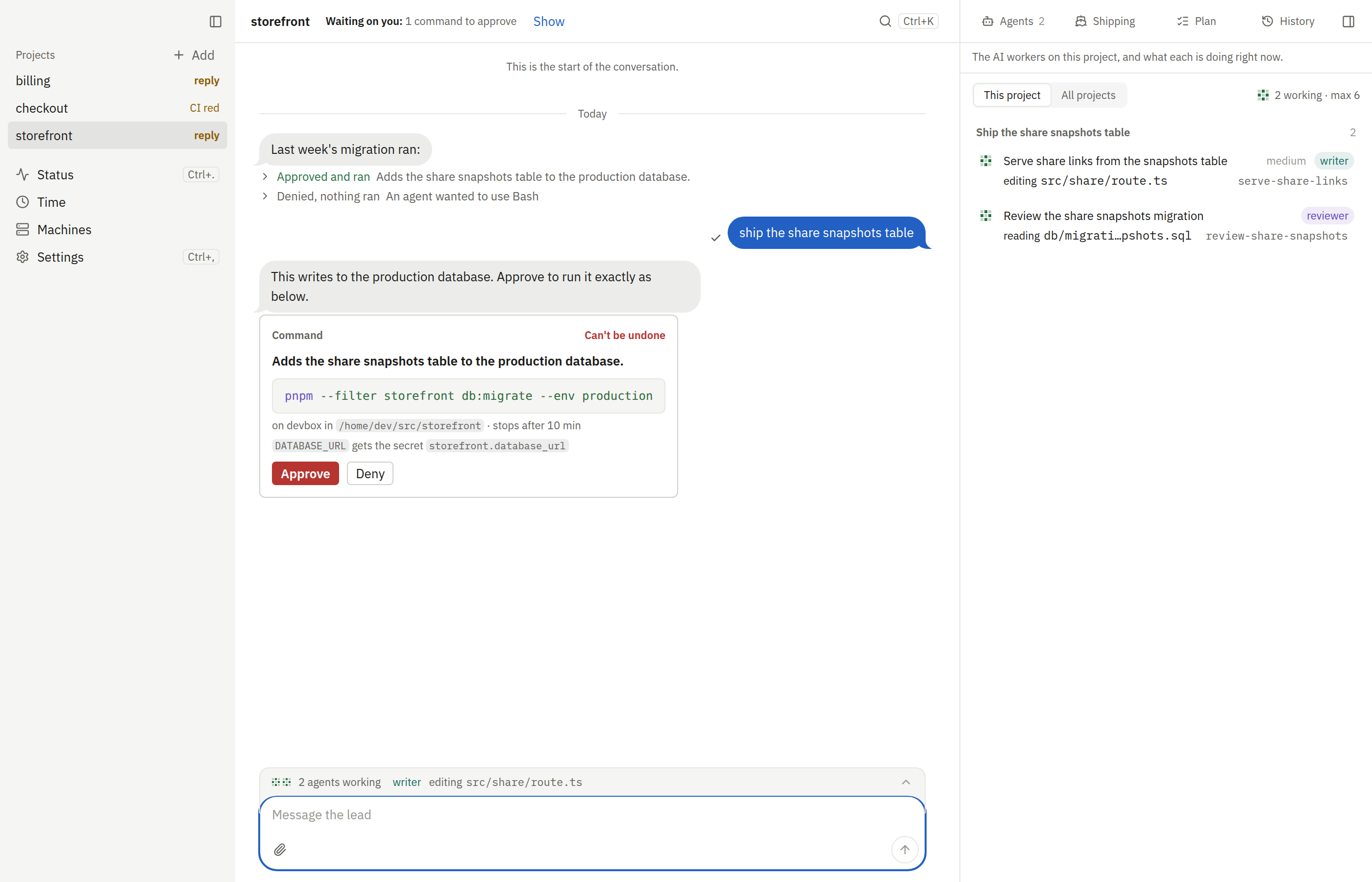
- The item shows the command, the reason and the machine.
- Click Approve to run it, or Deny to refuse. A command marked “Can’t be undone” asks once more: click “Yes, run it”. With the item focused, Enter approves and Esc denies.
- The node runs exactly the stored command, in the project’s workspace. It is killed after the lead’s timeout: 30 minutes unless the lead asked for more, at most 4 hours.
- The exit code and output go back to the lead. The item folds to one line, such as “Approved, ran in 12s”; click it to see the command and its output again.
If the machine was offline when you approved, the item opens again and says why. Click “Approve again” once it is back. If an answer doesn’t go through, the item says why in one line; click Retry.
Approve a Navi’s email, event or page
Section titled “Approve a Navi’s email, event or page”A Navi asks before any write, send, delete or share through its integrations. Its card shows the account, every recipient, the subject and the whole body, or the page or file and the change, all read from the exact input that runs. Approve sends exactly that, once: there is no “always allow”. Moving money, trading and creating accounts are refused even if approved. See The approval card.
Hidden characters
Section titled “Hidden characters”Some characters change how text reads without showing: control characters, line and paragraph separators, right-to-left overrides and other bidi controls, and zero-width characters. A command or an email holding one could read differently on the card from what runs or goes out. Every approval card, on the desktop and on the phone, shows each one as a mark such as ⟨U+202E⟩ and says Contains hidden characters. Each value also keeps its own direction, so a right-to-left word can’t reorder the words around it. Accents, emoji and other scripts show as written.
The marks only change how the card shows a value. Approve runs or sends the exact text.
Enter a secret
Section titled “Enter a secret”When a lead needs an API key or a password, it asks with request_secret, and the item names the machine and where
the value goes: a line in an env file, a file, or a variable for one order’s agents (see below).
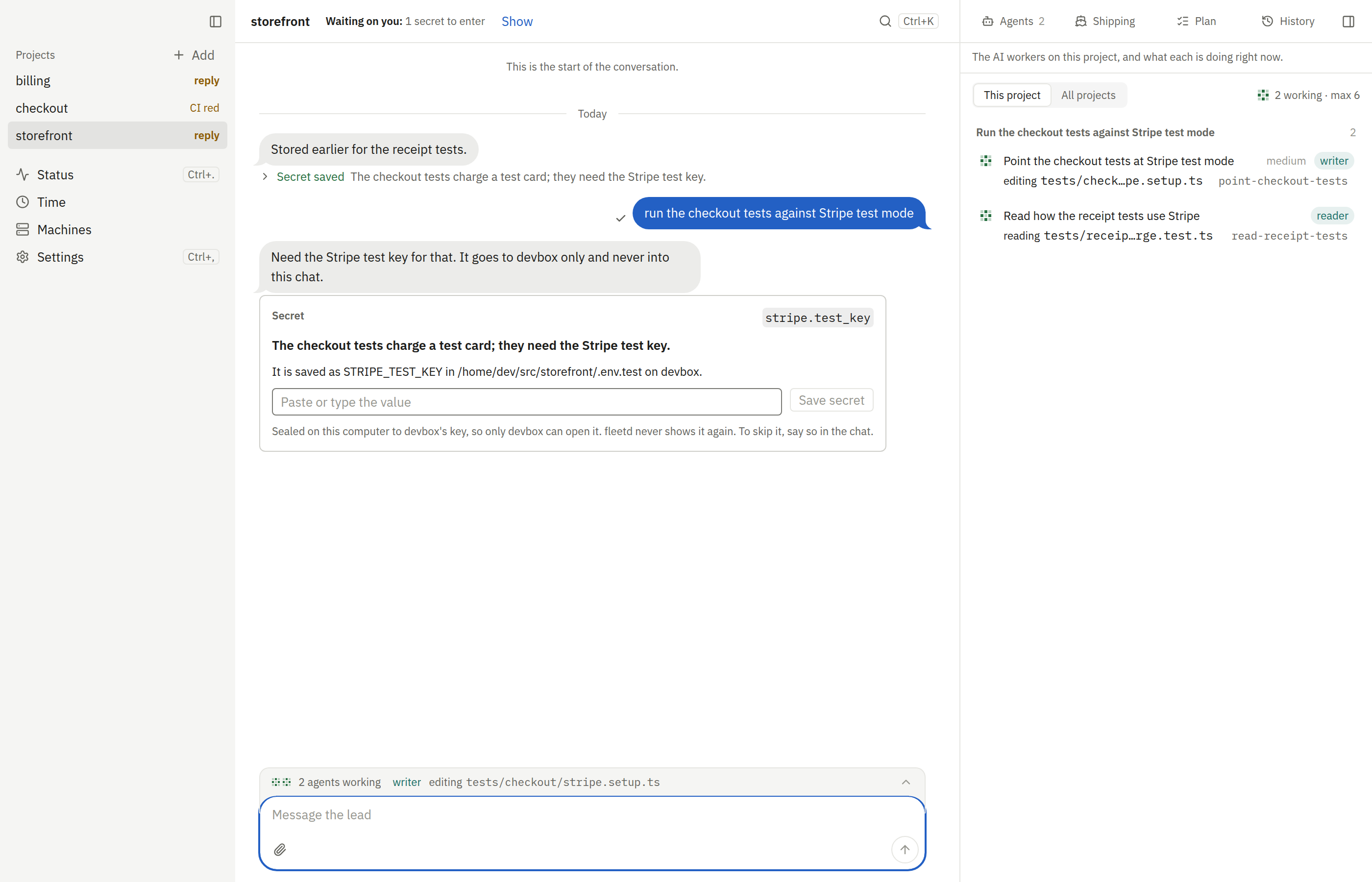
- Type or paste the value in the masked field: up to 64 KB.
- The app seals it to that machine’s key (a libsodium sealed box). The field clears once the value is saved; if saving fails, what you typed stays so you can click Retry.
- The hub passes the sealed value on without storing it.
- The node writes it with mode
0600. - The lead sees only its fingerprint, never the value. The value never enters the chat.
If you don’t want to give a secret, or a command isn’t needed after all, say so in the chat; the lead takes the request back.
A gated command can use a stored secret as an environment variable. The node reads it from its own files.
For a secret every agent of a project should have, such as a test API key, set it in the project’s settings instead: see Environment variables.
A variable an agent asks for
Section titled “A variable an agent asks for”An agent that finds a variable it needs isn’t set asks its lead with ask_lead, naming the variable and why, never its
value. The lead relays it to you as a secret request whose item says for W27’s agents (the order’s id): its sink is
order:<machine>:<order>, on the project’s machine.
- The value reaches only that order’s agents on that machine: each one already running gets it at its next turn (its claude starts again with it and resumes its conversation), and each new one from the start. No other order’s agents and no other project’s see it.
- It is masked like a project’s secret, as
***NAME***, in everything those agents report. - A value entered after the order closed is refused.
- It goes when the order closes, done or stopped: the node forgets it, and the hub drops its record (name, fingerprint and size). A machine offline then forgets it once it is back.
- Its limits are a project variable’s: up to 64 KiB, any number of lines, no NUL character, and the order’s values together with the project’s stay under 512 KiB.
Each agent’s brief lists the names of the project’s and its order’s variables (a short plain value too), never a secret’s value.
What agents send is masked too
Section titled “What agents send is masked too”Before anything an agent reports leaves its machine, the node replaces each of its project’s and order’s secrets with
***NAME*** (see what is masked). That covers the agent’s own fleetd calls as well: a secret
pasted into ask_lead, a report or any other fleetd tool reaches the hub, its records and the app masked. A call
that masking would make too long for its field, or one the machine can’t read the secrets to mask, is refused there, so
it is never sent.
From an MCP client, a secret is entered with secret_submit and an item is answered with approval_answer. Both
take only a human key. requests_list lists every secret and approval request with its state.
Approve a Navi’s tool call
Section titled “Approve a Navi’s tool call”A Navi’s lead runs with claude’s permission prompts on: any tool off its short allow-list (a command, an email send, another MCP server’s write, its first visit to a site) asks first. fleetd shows the ask in the Navi’s chat as an approval with the tool and its input, such as an email’s recipients and full text. Approve runs the tool with exactly that input; Deny tells the Navi you said no, with your reason if you type one. There is no “always allow”. If the Navi’s run ends before you answer, the approval closes by itself.
Tool permission rules
Section titled “Tool permission rules”Leads and tasks run with claude’s permission prompts off; a Navi’s lead is the one exception (above). A project can deny tools for every session, with rules in
claude’s own syntax in .fleetd/policy.yaml:
tools: deny: ["Bash(git push:*)"]fleetd adds its own denials on top: Claude Code’s subagents, and claude itself in an agent’s shell. See
Config & files.