
Chat with the lead
You’ll give a project work by chatting with its lead, the way you’d talk to an engineer.
You: the checkout button is misaligned on mobile Safari, fix itLead: On it. One writer on the CSS, one reviewer after. ▸ 2 agents workingLead: Fixed in "Align the checkout button on Safari", merged.Each project has one lead and one ongoing chat. Click the project in the sidebar to open it.
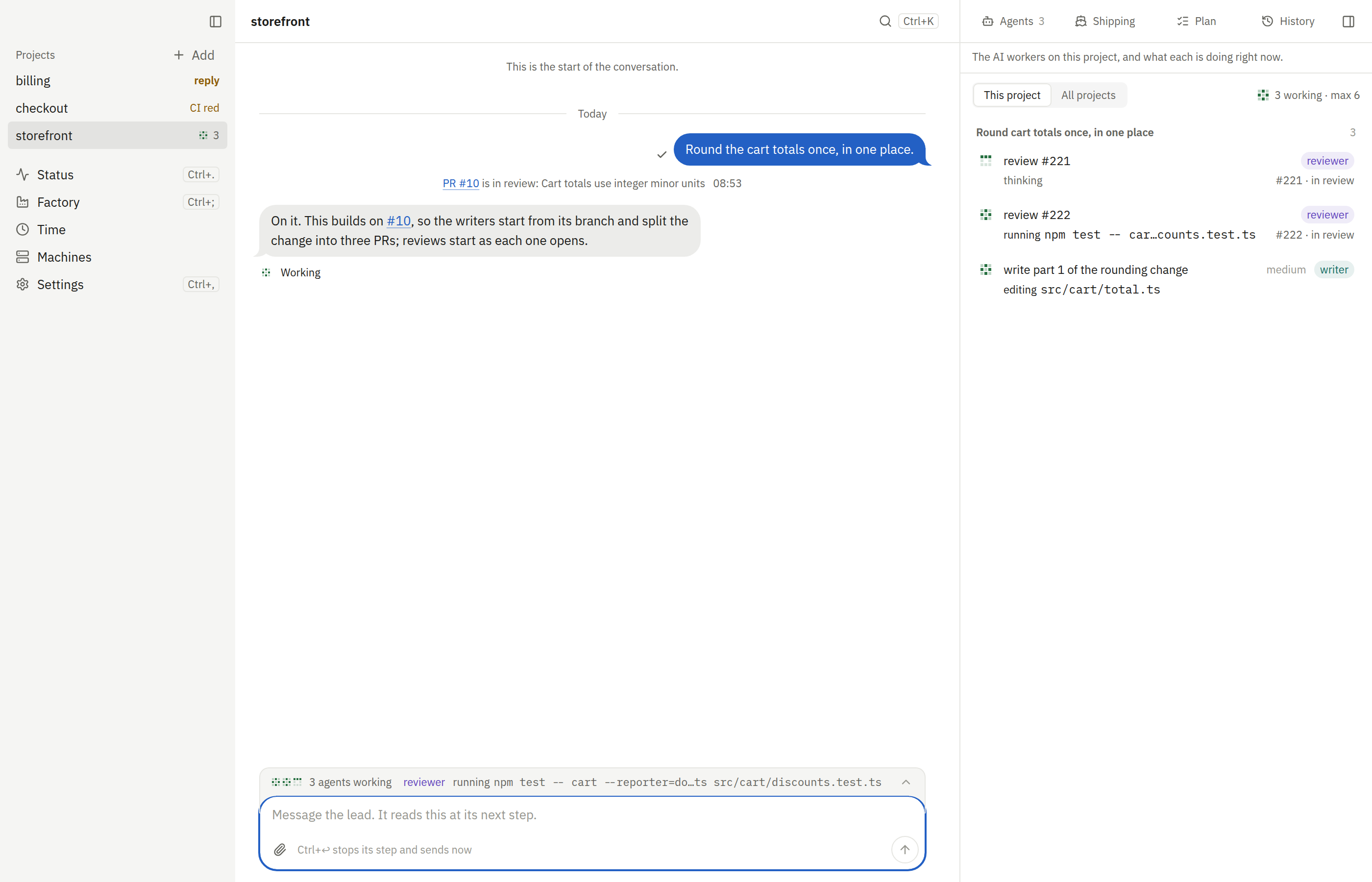
Send a message
Section titled “Send a message”Type in the box at the bottom of the chat and press Enter. Shift+Enter adds a new line. The box has the cursor as soon as a chat opens. A new chat asks what the lead should do, with a few starters that fill the box for you to edit.
| You can | How |
|---|---|
| Describe work | In your own words. The lead turns it into tasks itself. |
| Attach files | Paste, drop, or attach images, text or PDF: up to 20 files a message, 25 MB each. The lead gets them with your message. |
| Paste a screenshot | Paste it into the box. |
| Send it again | Press ↑ in the empty box to bring back your last message. |
Words you haven’t sent stay in each project’s box, even after you quit the app.
The lead keeps its own plan and bookkeeping. You never file tasks or orders yourself.
After an hour idle, the lead starts fresh with your next message: from the project’s state, its decisions and the last few chat messages, not the whole conversation. If it should know something older, say it again.
From a terminal
Section titled “From a terminal”fleetd chat sends the same message as the box, and fleetd chat history reads the chat:
fleetd chat devbox/storefront "fix the checkout button" --follow --key-file ~/.fleetd/human.keyfleetd chat history storefront --key-file ~/.fleetd/human.key--wait prints the lead’s reply when its turn ends; --follow streams it as it is written. The key says who writes:
with your human key it writes as you. Make one once with
fleetd hub key create --human --name terminal --out ~/.fleetd/human.key. Each message says where you wrote it:
“You · app” or “You · cli”.
An agent or script can write too, with a key of its own:
fleetd hub key create --agent nightly-cifleetd chat devbox/storefront "the nightly build is red" --key-file ~/.fleetd/hub/keys/nightly-ci.keyThe first command writes the key to a new file only you can read and prints the file’s path, never the key. The agent’s messages show as “Agent · nightly-ci”, and the lead takes them as input, never as yours: an agent can’t approve a command, enter a secret, steer or stop, and the chat keeps waiting on you. Each agent key sends at most 10 messages a minute. A project’s own lead and agents talk to each other through their fleetd tools, not its chat.
Reply to the lead
Section titled “Reply to the lead”The lead asks only what it really needs: product calls, money, and irreversible steps. It asks in the chat, as numbered items with a recommendation each:
Lead: Two calls before I ship: 1. Keep the old endpoint for a release? I'd keep it. 2. Bump the minor version? I'd bump it.Reply in plain words, or tersely:
| Reply | Means |
|---|---|
1 go, 2 rec |
Yes to item 1, take the recommendation on item 2. |
do it |
Go ahead with what it proposed. |
nvm |
Drop it. |
2: keep it for two releases |
Answer an item in your own words. |
To answer one bubble, hover it and click Reply: its first line goes above the box, and your message is sent quoting it. When the lead asks a yes-or-no question, it shows Approve and Deny buttons, or one button per choice; a click sends that word as your reply.
Hover any of the lead’s bubbles for a tapback (👍, ❤️ and the rest). Tapbacks stay on this device and don’t reach the lead, with one exception: 👍 on the message the lead waits on, or on an Approve and Deny question, answers it.
The lead logs each answer as a decision, so it never asks the same thing twice. In the
sidebar, a project says “reply” while the lead’s last message waits for your answer, “secret” or “approve” while an
item is open, and “blocked” when something outside the work holds it up. ⌥⌘A jumps to the next one. In the chat, the
top bar says what it waits on after the project’s name, such as “2 questions, asked at 09:02” or “1 command to approve”.
Click Show to scroll to it. When nothing waits on you but the project is blocked, the bar says why. A check red on main
blocks nothing, so the bar warns instead, naming the check and whether a fix is under way: “rust (macos) is red on
main, fix in progress”. When nothing needs you, the bar is just the project’s name.
Things to look at
Section titled “Things to look at”The lead can flag one of its messages for your look: something to see, something to try, or a risk. An agent’s suggestion to try a PR comes flagged the same way, with its Try it button. When nothing waits on you, the top bar counts them and names the oldest: “1 to look at: the Machines page redesign”. Show scrolls to that message and rings it briefly; Dismiss drops it. A flag clears once you have seen its message (it stayed on screen a moment, or you used Show), and fades on its own after a day. A project keeps at most 3 from the lead and 3 Try it suggestions; a newer one replaces the oldest of its kind. Flags never notify you: they are only in the app, below questions, approvals, secrets and a blocked project, which always come first. A check red on main still shows after them.
How the lead writes
Section titled “How the lead writes”The lead texts like a teammate: short messages, split into bubbles, with PR numbers, commands and errors exact. When
words aren’t the best fit it sends a block instead: a chart, a table, a diff, a live card for a PR or an agent, a
checklist, an image, or a question with buttons. Tapping a button sends your answer as a chat message, so only you
can answer it. To change how it talks, edit the Voice prompt (lead.voice) like any
prompt. Commit messages, PR bodies and agents’ briefs stay plain whatever the voice.
An image can be one the lead or its agents made, such as a screenshot of a UI change: they upload it with
chat_image, which reads only a png, jpeg, webp or gif file (checked by its
bytes, at most 25 MiB) inside the agent’s own worktree or working directory, never anywhere else on the machine. The
image belongs to that project: only its chat shows it. One the lead never shows is deleted after 24 hours.
It stays quiet on routine progress: a rebase, a review passing, CI starting, a PR queued or an agent resuming posts
nothing (the panel’s Activity tab shows those). It writes when you must act or decide, when something you asked about
lands, fails or is blocked, when a check on main stays red, and to answer you. What lands together comes in one short
line. A merge partway through your request stays silent; the lead always writes when the request finishes. To change this, edit the Lead prompt
(lead.start).
Steer while it works
Section titled “Steer while it works”A message reaches the lead at once. How depends on what the lead is doing:
| The lead is | Your message |
|---|---|
| Idle | Starts its next turn. |
| Working | Is a steer: it reads it at its next step, after the tool it is running. The box says so while you type. With ⌘Enter (Ctrl+Enter on Linux and Windows) it stops that step and reads it now. |
| Starting, or its machine is away | Is held, and goes in as soon as it can. The chat says why it waits. |
To stop the work, click Stop beside Send (or “Stop the lead and its agents” in the command palette). The lead’s turn and every agent of the project stop now, and a line in the chat says what stopped. Then tell the lead what to do instead.
A message is never lost: if it can’t be delivered, it stays held, the chat says why, and fleetd keeps trying.
A small receipt under your newest message shows how it went in. A message sent with ⌘Enter keeps a quiet line saying the lead stopped its step to read it. See Steering.
Follow the work
Section titled “Follow the work”Everything shows up in the chat, quietly:
| In the chat | Shows |
|---|---|
| The agents strip, under the lead’s message | One line: how many agents are working, and on which PRs. Click it to see each agent in the panel’s Agents tab. |
| A quiet line under the lead’s reply | While the lead works: how long it has been working, what it’s doing now, and the orders and agents it started. When it’s done: how long it worked, such as “Worked for 3m 40s”. |
| One-line events | A pull request opened, merged, or sent back. |
| Cards in the lead’s messages | Charts, tables, a diff, a pull request or an agent with its live state, a checklist, an image. Click Open on a pull request or an agent to see it in the panel. |
| Three dots | The lead is writing; its message shows when it’s done. |
For a project’s work at a glance, see Status. For where the time went, see Where time went.
Read a pull request
Section titled “Read a pull request”The Pull requests tab of the panel beside the chat (⌥⌘B) lists the project’s PRs: open ones first, then those merged or closed, most recent first, each with its checks, its reviews and the agent that wrote it. Load more at the end reads older ones, back to the repo’s first PR. A PR named in the chat (“#221”, “PR #221” or its GitHub link), in the agents strip or in Agents opens it there too. For another project’s, open the command palette (⌘K), select the project, press ⌘K again and choose Pull requests in this project.
Click a PR to read it in the list’s place; All pull requests or Esc goes back.
If GitHub can’t be reached or its rate limit is reached, the list says so: you see the PRs fleetd made, or GitHub’s last answer, and Retry asks again.
| A PR shows | |
|---|---|
| Overview | Where it is on its way to main, its checks, its reviews with their findings, the agent that wrote it, the agents at work on it now, and its description. |
| Changes | The changed files and their diff, in one column or side by side. Click a file to jump to it. The panel widens while you read them. |
Open on GitHub is always there, for anything the app doesn’t show.
Earlier work
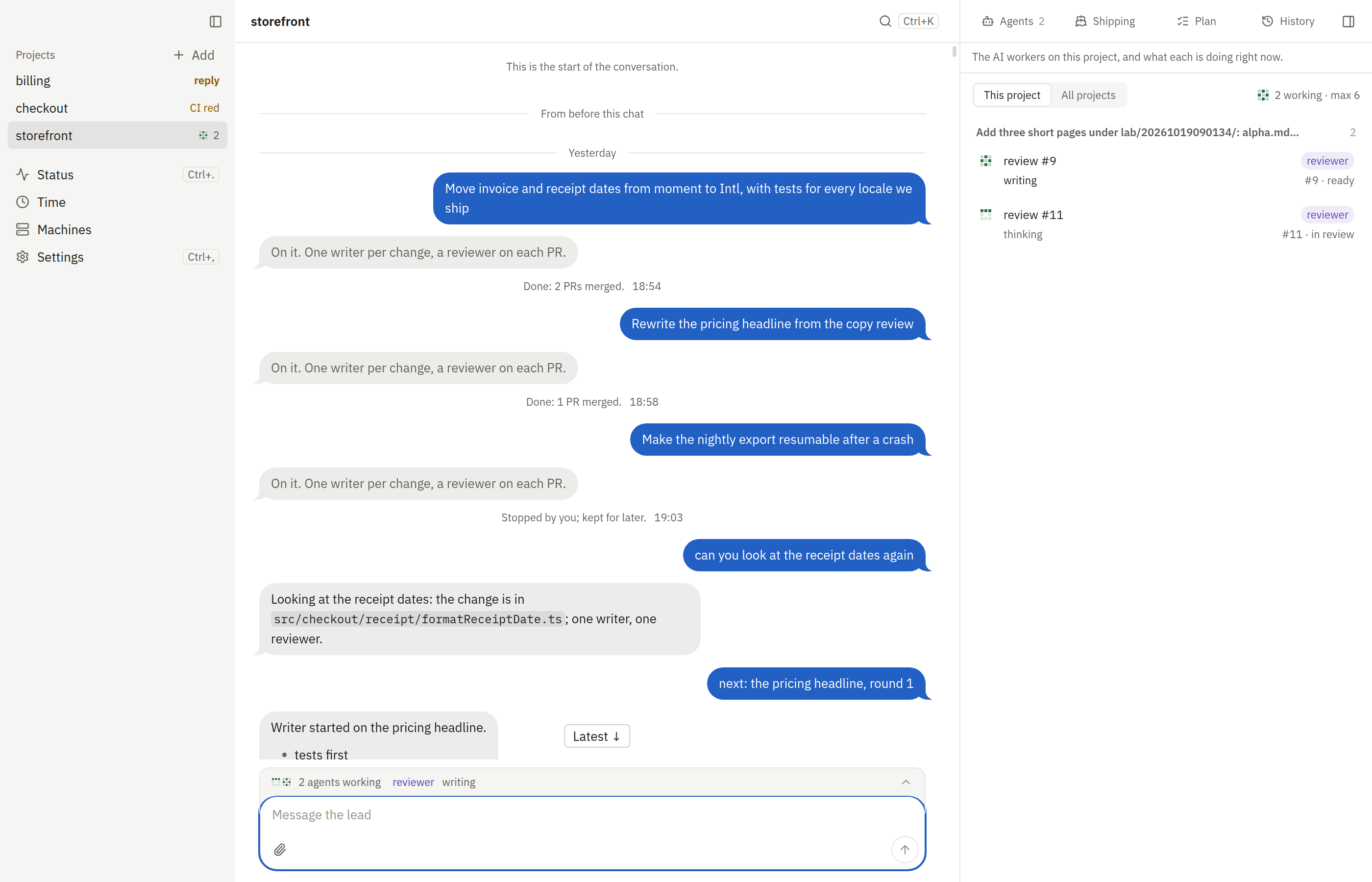
Section titled “Earlier work”Work from before the chat existed shows at the top of each project’s chat, under “From before this chat”: what you asked for, the lead’s replies, and how each piece of work ended, such as “Done: 2 PRs merged.” or “Stopped by you; kept for later.” Nothing was moved or deleted. Scroll up to read it.
Stop everything
Section titled “Stop everything”To stop all of a project’s work at once, press Stop in the chat, or run:
fleetd project stop devbox/storefront --key-file ~/.fleetd/human.keyA stop speaks for you, so it takes your human key. Make one once with
fleetd hub key create --human --name terminal --out ~/.fleetd/human.key.
From an MCP client, call project_stop. The lead’s turn and every running and queued agent stop, and the chat says
what stopped, such as “Stopped the lead and 2 agents.” Merged pull requests stay, and so do the lead and the chat: write
again to start new work.
Secrets and risky commands
Section titled “Secrets and risky commands”Two things never go through plain chat text:
| Item | What you see | What you do |
|---|---|---|
| A secret the lead needs | A masked field naming the machine and where the value goes | Paste or type the value and click “Save secret”. It never enters the chat. |
| A risky command | The exact command, why, and where it runs | Approve or Deny. One that can’t be undone asks once more. |
Once answered, each folds to one line that opens back up on a click. See Secrets & approvals.
When the work is done, the lead closes it and tells you why in the chat. Closing stops the order’s agents still working or waiting. An order with a pull request still on its way in stays open until it merges. Ask the lead to stop what you don’t want sooner.