
The desktop app
You’ll pair the desktop app with your hub and use it to chat with each project’s lead.
The app is installed with fleetd on any machine with a display. To add it on Linux without a display, see
Install. It updates itself (updating); fleetd update updates it too. Shortcuts below use ⌘; on Linux,
use Ctrl.
Pair it with the hub
Section titled “Pair it with the hub”The first time it opens, the app says what fleetd is and shows three steps that tick themselves as you go: connect to your hub, add a project, say hi to its lead.
With no hub on this computer yet, click “Set up fleetd on this Mac”: it opens fleetd init in Terminal (on Linux, your
terminal). When setup finishes, come back to the app and it pairs by itself. If no terminal opens, the app shows the
command to copy. On the hub machine, the app pairs by itself
when it opens. On another computer:
-
On the hub, print a pairing code:
$ fleetd pairPairing code: 38X0-57P8 (single use, valid until 2026-10-18T22:43:43.690Z)Grants: admin on every machineHub address: http://127.0.0.1:4778Pairing link: fleetd://pair?hub=http%3A%2F%2F127.0.0.1%3A4778&code=38X0-57P8The fleetd app on this machine pairs by itself when it opens. On another device, open theapp and enter the code and hub address above, or open the link there. -
In the app, under “Or connect to a hub on another computer”, enter the hub address and the code. Or open the
fleetd://pairlink.
The code works once, for 15 minutes. Capitals and the dash are optional: abcd2345 works as ABCD-2345. To connect with a key instead, click “Use a key instead”.
The app gets admin on every machine, so it changes the hub’s settings, such as max agents. For a device that
should only watch or only drive agents, print its code with fleetd pair --role read or --role operate. If
Settings says “This key lacks the admin role”, the app was paired with less: run fleetd pair on the hub machine and
pair again with the new code.
To add another hub, or rename or remove one, open Settings (⌘,) → Hubs. See Several hubs.
The window
Section titled “The window”| Part | Shows |
|---|---|
| Sidebar | Your projects, each saying why it wants you: “reply”, “approve”, “secret” or “blocked”. Otherwise “CI red” while a check fails on main (which blocks nothing), or how many agents are working. A project in bold has a new message from its lead. Below them: Status, Factory and Settings, which for an admin says how many setup steps are left. The hub’s row at the bottom says how many machines are down and opens Machines. |
| The top row | The page’s title and its controls, then the command palette (⌘K) and the panel’s toggle. In a chat: the project’s name, then only what needs you, if anything. The panel starts at the window’s top, so its tabs share this row. |
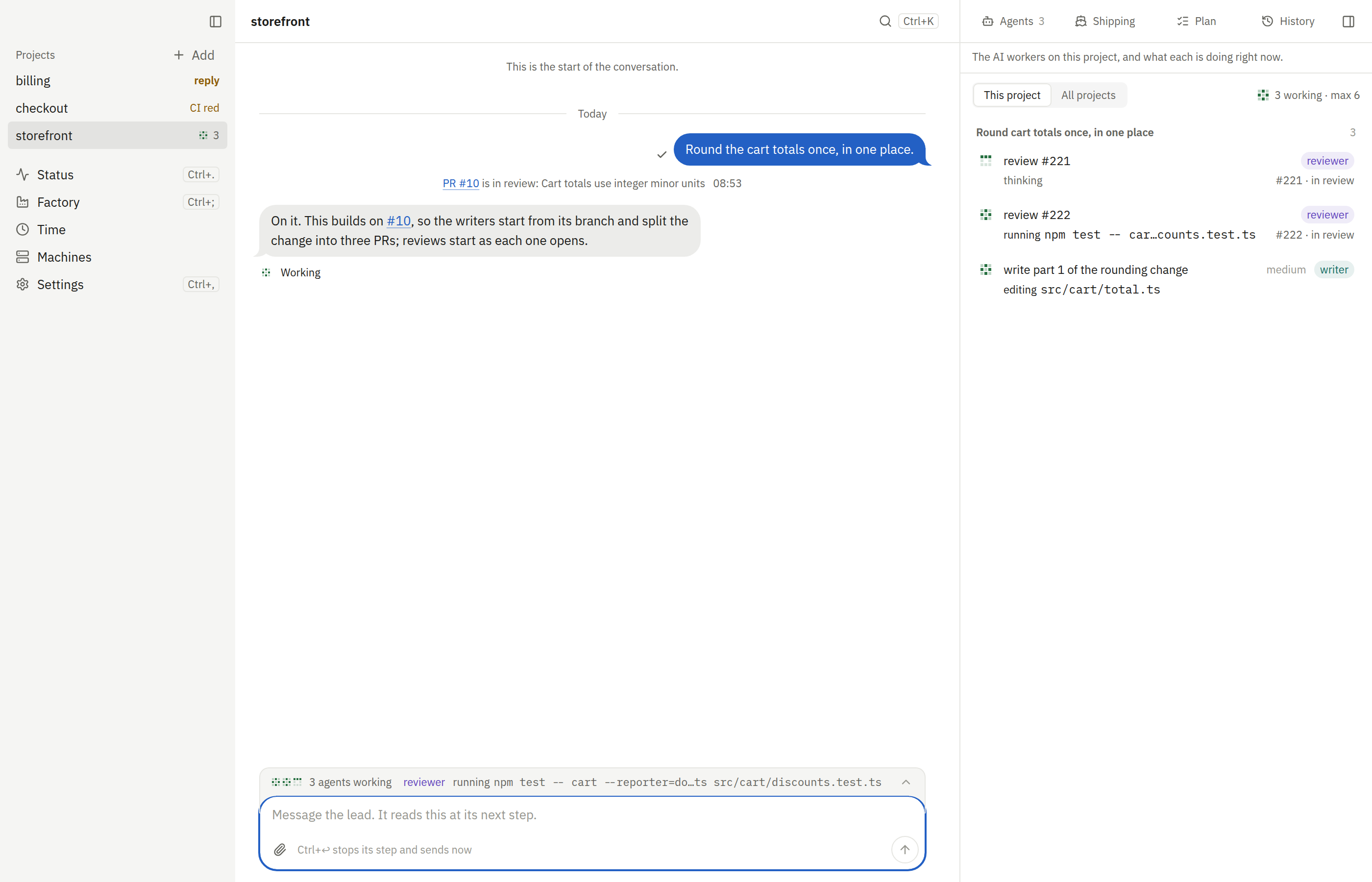
| The chat | The selected project’s conversation with its lead. |
| The panel | Beside a chat, on the right: a tab each for the project’s agents, its pull requests, its merge train, its checklist, its activity and its decisions. Open it with the toggle at the top right or ⌥⌘B. |
In a window narrower than about 1000 px the sidebar and the panel hide themselves; ⌘B and ⌥⌘B show them again. The app remembers whether you left the panel open, the tab you had and its width. On macOS the Dock icon shows how many projects need you.
The panel
Section titled “The panel”Drag the panel’s left edge to make it wider or narrower; double-click the edge to put it back. From the keyboard, Tab to the edge, then ← widens it and → narrows it (with Shift, in bigger steps), Home and End go to its narrowest and widest, and Enter resets it. Reading a pull request’s changes widens the panel so the diff has room; that wide width is set the same way and kept apart from the other. The panel never grows so wide that the chat loses its room.
When the tabs don’t fit, they show as icons with their counts (point at one for its name), and if even those don’t
fit, the rest go under More (···). The tab you’re on always stays in view. Each tab is a link too:
#/project/<machine>/<project>/checklist opens the checklist, as the palette’s Checklist does, and /train,
/activity and /decisions open those tabs the same way.
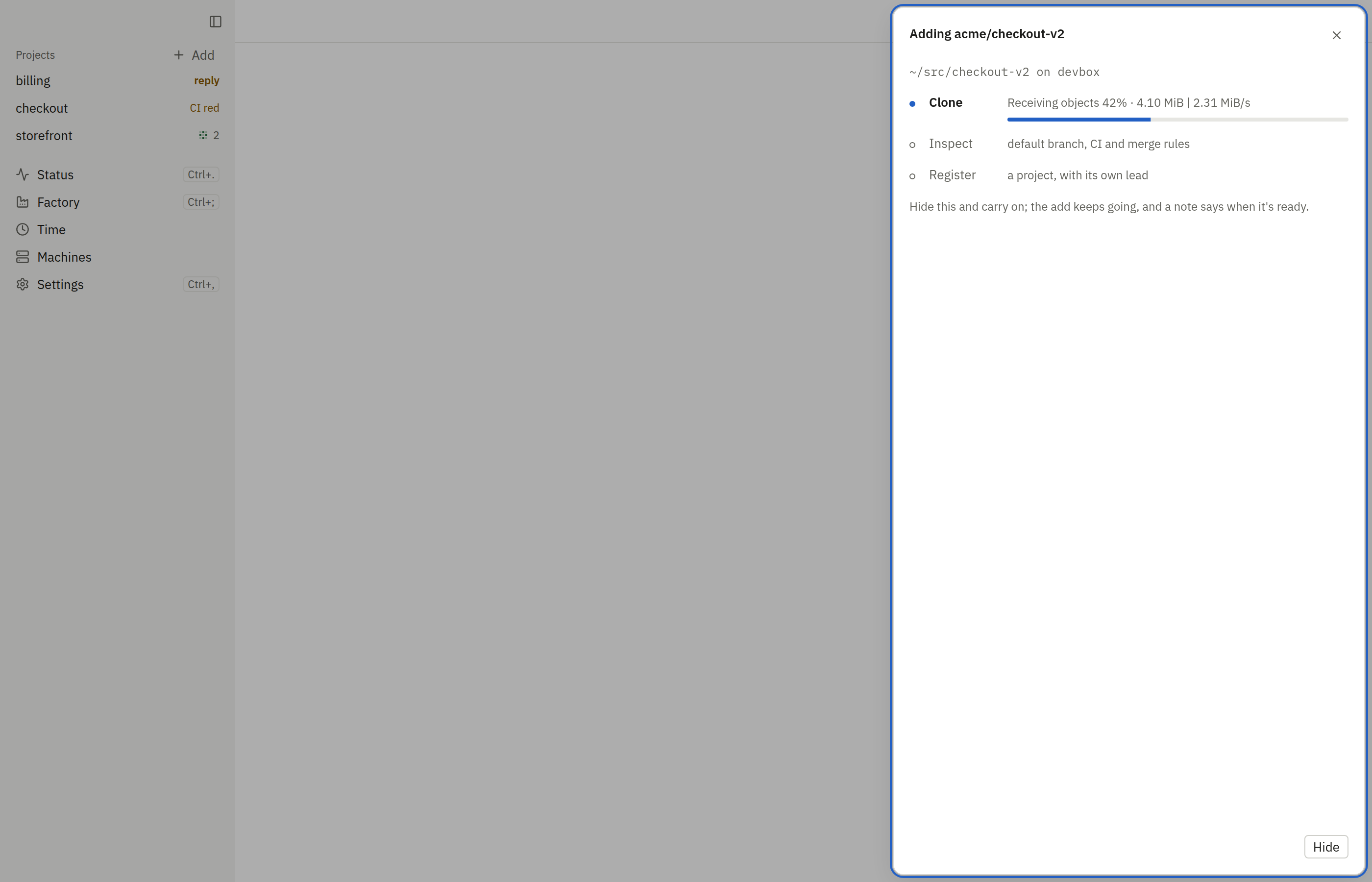
Click a project to open its chat. ⌥⌘A jumps to the next project that wants you. To add a project, click “Add” next to Projects, then paste a GitHub URL or
owner/repo, or type a name to start a new, empty project. You can also drop a folder or a GitHub link anywhere on the window, a chat included. Other files dropped
on a chat attach to your message. See Add a project and Start a new project.
The chat
Section titled “The chat”| Part | Does |
|---|---|
| Messages | The conversation, with Markdown, attachments and pasted images. Older history loads as you scroll up, including work from before the chat existed. A chat opens where you stopped reading, under a “New” line. Scrolled up, a button takes you back to the newest message and counts what arrived meanwhile. |
| The box at the bottom | Your message (“Message the lead”), ready to type as soon as a chat opens. Enter sends; Shift+Enter adds a line; ↑ in an empty box brings back your last message; the clip or ⌘⇧A attaches a file. While the lead works, a message steers it, and Stop beside Send ends its turn now. Unsent words stay, even after you quit. |
| An empty chat | Asks what the lead should do, with a few starters that fill the box for you to edit. |
| The agents strip | Under the lead’s message, after any approval or secret it asks for: how many agents are working, and on which PRs. Click it to open Agents; click a PR number to open the PR. |
| One-line events | Pull requests opened, merged or sent back. A PR’s number or GitHub link here or in a message opens the PR in the panel. |
| Secret and approval items | A masked field with “Save secret”, or a command (or a tool’s permission request) with Approve and Deny. See Secrets & approvals. |
| The top row | The project’s name, then what needs you, and nothing when nothing does. While the lead waits on you, what for (“Waiting on you: 2 questions, asked at 09:02”) and Show, which scrolls to it. Otherwise why the project is blocked, with Resume when its machine’s usage pause is why. Otherwise what there is to look at (“2 to look at: the Machines page redesign”): Show scrolls to that message and rings it, Dismiss drops it; see Things to look at. Otherwise a check red on main, which blocks nothing. |
When the hub is out of reach
Section titled “When the hub is out of reach”Your projects and recent chats stay on screen, marked “Offline, as of 09:02”. You can keep writing: each message shows “queued” and sends by itself when the app reconnects, once, even if you quit in between. Edit or Dismiss takes a queued message back. The banner says why the hub doesn’t answer and when the app tries again; Retry now tries at once. Approvals, secrets and Stop wait until the hub is back.
Once you’re connected again, a chat says “Last known” until its newest messages load; if they can’t, it says so, with Retry. “Disconnect and forget key” in Settings › Hubs clears what the app kept for that hub, queued messages included.
How to work with the lead: Chat with the lead.
Agents
Section titled “Agents”The Agents tab of the panel beside a chat (⌥⌘B) lists the project’s agents at work, those waiting on you first: each one’s role, its task, what it’s doing and for how long. Click one to watch its work as it happens: what it was told, the commands it ran, the files it edited and what it’s writing. Watching doesn’t interrupt it. To change what it does, tell the lead in the chat. Its PR number opens the PR, and What it was told shows the exact first message and prompts it started with; All agents or Esc goes back to the list.
All projects, above the list, lists every project’s agents instead, each project under its name, those with an agent waiting on you first. Click an agent of another project to open its work beside that project’s chat. This project goes back. The panel remembers which you chose.
Beside the count of agents working, max is the project’s Max agents (“4 working · max 20”). Click it to change it in Settings › Projects › Agents.
The Train tab shows the project’s merge train: the pull request merging now and its stage (rebasing onto the base,
running CI, merging) with the checks it waits on, then the pull requests in line, in the order they’ll merge. Each
one says whether it’s waiting for review, in review, ready, or blocked, and what blocks it: a hold label, a conflict
with the base, or failed checks that sent it back to the agent that wrote it. Pull requests that go through together
as a batch show as one group, while they merge and after. Below them are the latest merges and refusals, with the fix
a refusal asks for. Click any of them to open the pull request. The tab follows the train as it moves, shows when
each thing happened and never guesses how long something will take. Its count is the pull requests merging or in
line. It only reads: the train itself decides what merges.
Checklist
Section titled “Checklist”The Checklist tab shows the project’s to-dos as its lead keeps them: how many are done, then what’s being done now, what’s still to do and, folded away, what’s done. An item’s pull request or agent opens in the panel. The lead updates the list as the work moves, and the tab follows along as it does. The tab’s count is the items still open.
You can tidy the list yourself. Point at an item for its delete button, or right-click it and choose Delete; Clear done, beside the progress, takes off every done item at once and shows only while something is done. Neither asks first: the items go at once, and Undo in the toast puts them back for a few seconds after, held while you point at it. Quitting before then still removes them. The lead’s next wake tells it what you took off, and it leaves those off unless you ask again. To add or change an item, tell the lead in the chat. A project’s lead starts a checklist when it plans work; until then the tab says there is none yet.
Activity
Section titled “Activity”The Activity tab shows what happened in the project while you were away, newest first: agents starting and finishing, reviews, merges, what was asked of you and what you answered. A line marks what came in since you last looked, and a run of the same thing (a pull request reviewed again and again) folds into one row. A line that names an agent or a pull request opens it. The tab’s count is what came in since you last looked.
Decisions
Section titled “Decisions”The Decisions tab lists what the lead and you have decided in the project, one row per question with the answer in force first. What it replaced, or that you revoked it, folds under it. Search, or narrow the list to who decided and where it applies; open a row for its why and history, and change or revoke the decision there. The tab’s count is the decisions in force.
Status
Section titled “Status”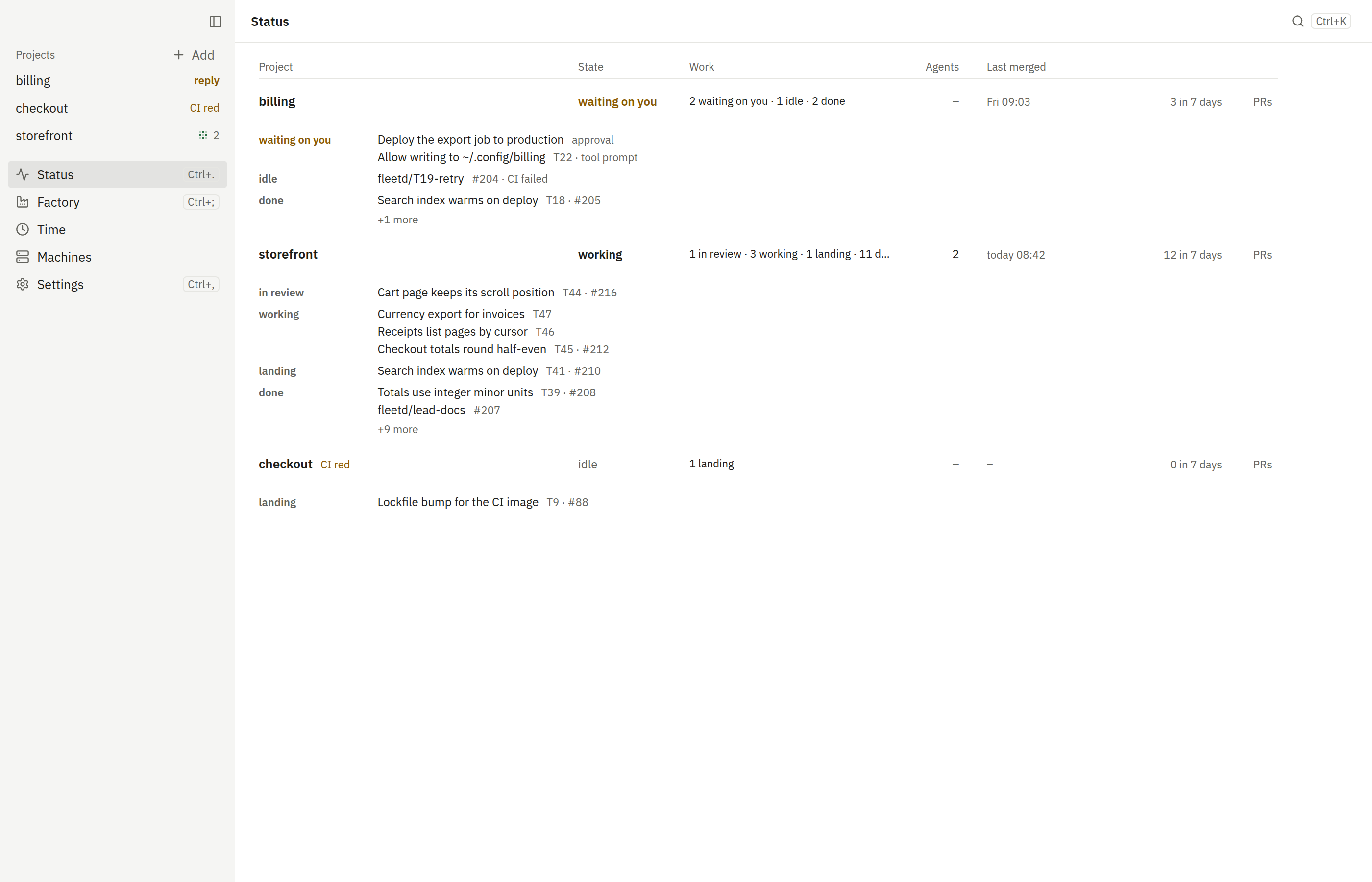
Status shows one row per project: a state word (waiting on you, blocked, working or idle), its work in groups (waiting on you, in review, working, landing, idle, done), the agents running, and when the last pull request merged. Under it, each item opens its agent or pull request in the panel. Click a row to open that project’s chat, or PRs for its pull requests. See Status.
Where time went
Section titled “Where time went”Open Factory › Agent time from the sidebar, the agents strip in a chat, or the command palette (Agent time). It has three tabs:
| Tab | Shows |
|---|---|
| Timeline | One piece of work: a lane per agent, PR and CI check, and the waits on you, with the critical path marked. Each agent’s lane shows its model and output tokens. Hover a bar for the command, its duration and exit code; a transcript’s “Open the chat” goes to the project’s chat. |
| Breakdown | Agent time by group, with the slowest commands and CI checks. |
| Insights | Findings, each with the spans behind it. |
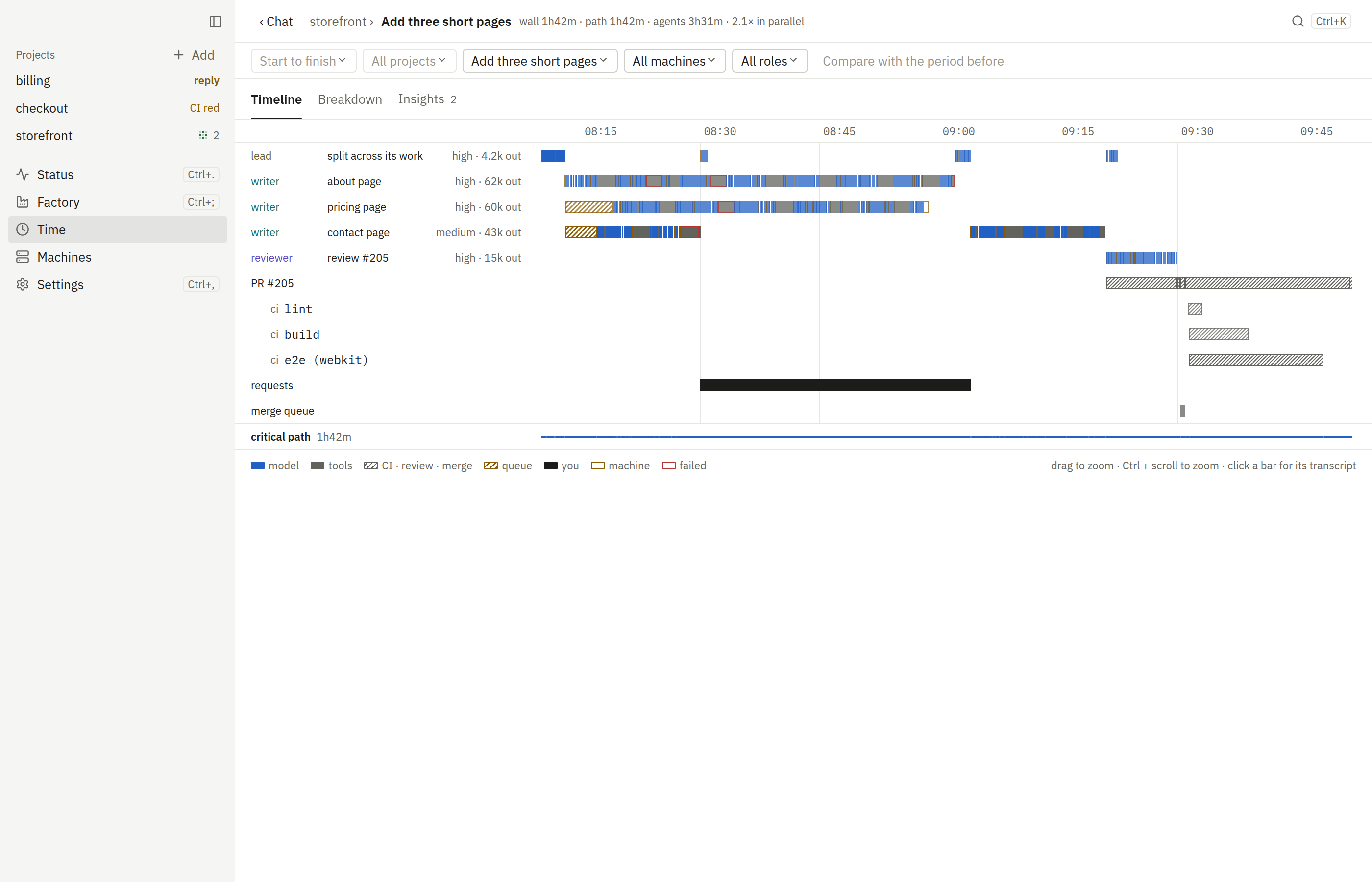
Times are in your own time zone. How to read it: Where time went.
Machines
Section titled “Machines”Open Machines from the hub’s row at the bottom of the sidebar (its Machines line, or “1 down” while a machine is down) or the command palette. The title shows how many agents run across the fleet (“agents 2 / 12”), beside Add project.
Each machine is one row: its name, its state (online, degraded, or offline and when it was last seen), how many agents run there and how many projects it has. On the right, anything that wants a look: a recent sleep, Claude usage near its limit, a setup check that failed. A degraded machine says why under its name. Click a row to open it: load, memory, Claude usage, its fleetd version and tags, its projects (each with Open, Settings and Remove) and, for an owner or admin, Roles and screens, which goes to Settings › Hub › Machines.
Under the machines, the setup checks the hub ran: the ones that failed or warned, each with its fix (a command to copy, or Fix), then the rest a click away. Re-run runs them again.
Settings
Section titled “Settings”Open Settings with ⌘, or the sidebar’s Settings row. It takes the sidebar’s place; Back returns to where you were. Type in “Search settings” to find an option or a prompt by name, and press Enter to open the first match. Its pages are in three groups: You and Projects for everyone, and Hub for the hub’s owners and admins only. The rule: what changes a teammate’s work outside your project is in Hub.
| Page | Has |
|---|---|
| You › General | Appearance (light, dark, match system) and time in the app. Notifications: which alerts show (the lead asks you something, a command or secret waits, the lead finishes what you asked, a machine problem, anything else), whether they play a sound, the Dock badge, and a test. There is never an alert for the chat in front of you, and in quiet hours only urgent ones show. Version: this app’s version and channel with Check for updates, and one read-only line saying whether the hub and its machines are up to date; owners and admins also get the way to Hub › Machines, where the update is. |
| You › Your accounts | Claude: which Claude account the orders you start and your Navi run on, your own subscription (paste the token claude setup-token prints, then Connect and test) or the hub’s API key when the hub’s admins allow it (see Claude accounts). GitHub: the GitHub account your PRs open as. Google: the Google account your Navi reads Gmail, Calendar and Drive with, a row per Navi (see Google for Navi). |
| You › Your memory | How you work, as the leads remember it: read by the agents of work you start and by your Navi, and edited only by you. See Memory. |
| You › Hubs | Each hub this app is paired with, with its address, its connection, its name and colour, Pair again and Remove; Add a hub pairs one more (see Several hubs). Then Hub links, both halves in one place: the link keys made as you on each hub, and the other hubs your Navi reaches (see Hub links). |
| Projects | One project, picked at the top of the group. Project: its name, its repos with the default setup for those without their own, worktrees, its agents’ environment variables (plain and secret), the merge train’s checks, and deleting it; for a Navi, its integrations (see Project settings). Agents: its max agents (the slider applies when you let go, with Undo, and “Use the default” goes back), the task profiles its lead may use (the default is always checked), its own MCP servers and its skills. Instructions & memory: its own instructions, added to its agents’ first message after the hub-wide ones, then what its leads remember about the project, and Refresh memory every night. Automations: its automations. Prompts: the prompts fleetd sends its agents, listed under Prompts in the sidebar, to read and edit for this project, and any of its edits that no longer apply. A prompt with one text for the whole hub shows read only. See What agents are told. |
Owners and admins see the Hub group under Projects; nobody else sees it, and the hub refuses its changes from anyone
else. While a required setup step is left, the sidebar’s Settings row says how many (2 left) and opens on Hub ›
Setup, and a hub with no projects yet opens on setup’s welcome in place of Get started. With several
hubs, the group manages one at a time.
| Page | Has |
|---|---|
| People | Everyone on the hub, with their role, devices, and the Claude and GitHub their work runs on, with any usage pause. Change a role in place, or remove someone: their devices are signed out at once, and what they did keeps their name. An admin can’t change or remove an owner, and nobody changes their own role here. Below, Invite someone: a name and a role (member or admin) make an invite link, shown once with Copy; their fleetd app opens it and joins as them, once, within 7 days. Then the invites still waiting, each with Revoke, and every hub link minted on the hub. |
| Machines | Add machine, the hub’s machines with Repair and Remove, each one’s page with its checklist, machine roles, max agents for each machine and for all of them together, and Updates: the hub’s and each machine’s fleetd and whether each is up to date, with the updates sheet, which updates the hub, then every machine, then this app. |
| Every project › Profiles | The hub’s task profiles: each one’s model, reasoning level, fast mode and note. New profile, Edit (rename, change, mark as the default) and Delete. |
| Every project › Tools & skills | The global MCP servers and whether agents also get their own, and the hub-wide skills. |
| Every project › Instructions & memory | The instructions for every project, the memory caps, and Shared memory: the one memory every lead read before each person had their own, read by no agent now, to read and retire. |
| Every project › Prompts | The hub-wide prompts, listed under it in the sidebar. A project’s own edits come after them. |
| Hub accounts | What the hub itself connects to. Claude: the hub’s API key and optional endpoint, sealed to every machine, with Test; the switch “Members may use the hub’s API key”; what projects’ leads and unrequested work run on, with the hub owner’s subscription they fall back to (see Claude accounts). GitHub: the hub’s own GitHub App. Google: the OAuth client for Google for Navi, with the steps in Google Cloud Console, the Client ID and secret (sealed) and Test, then, optionally, real-time mail. Run guided setup again opens Setup. |
| Setup | Listed only while a required step is left. The hub’s setup steps, the same as fleetd init’s: each with its status, why it matters, the values to paste and the pages to open, Test, and Skip for now. A step’s result is saved where it lives: its button opens Hub accounts, People or Machines, and for Claude and GitHub also your own Your accounts. |
On a hub from before people, a key with admin on every machine counts as an admin, and so does any key on a hub too old to say; People there says the hub needs updating, with Update the hub, and the other Hub pages work as before.
Older links still work: #/settings/<page> and the former Administration’s #/admin/<page> open the page that has
their options now.
Shortcuts
Section titled “Shortcuts”⌘/ shows every shortcut in the app, and ⌘K finds any command by name. ⌘ is Ctrl on Linux.
The command palette (⌘K) opens on the project you’re in. Type a setting’s own name (“max agents”, “dark”) to find it. What you open most rises to the top. Press ⌘K again to see the other actions for the selected item, such as a project’s instructions.
| Keys | Does |
|---|---|
| ⌘K | Command palette |
| ⌘/ | Keyboard shortcuts |
| ⌘L | Focus the message box |
| ⌘B | Toggle the sidebar |
| ⌥⌘B | Toggle the panel |
| ⌘1 to ⌘9 | Open that project in the sidebar |
| ⌘[ / ⌘] | Previous / next project |
| ⌥⌘A | Next project that wants you |
| ⌘. | Status |
| ⌘, | Settings |
| ⌘⇧A | Attach a file |
| Enter / Shift+Enter | Send the message / new line |
| ↑ (empty box) | Bring back your last message |
| Esc | Close the menu, panel or sheet |